Project Overview
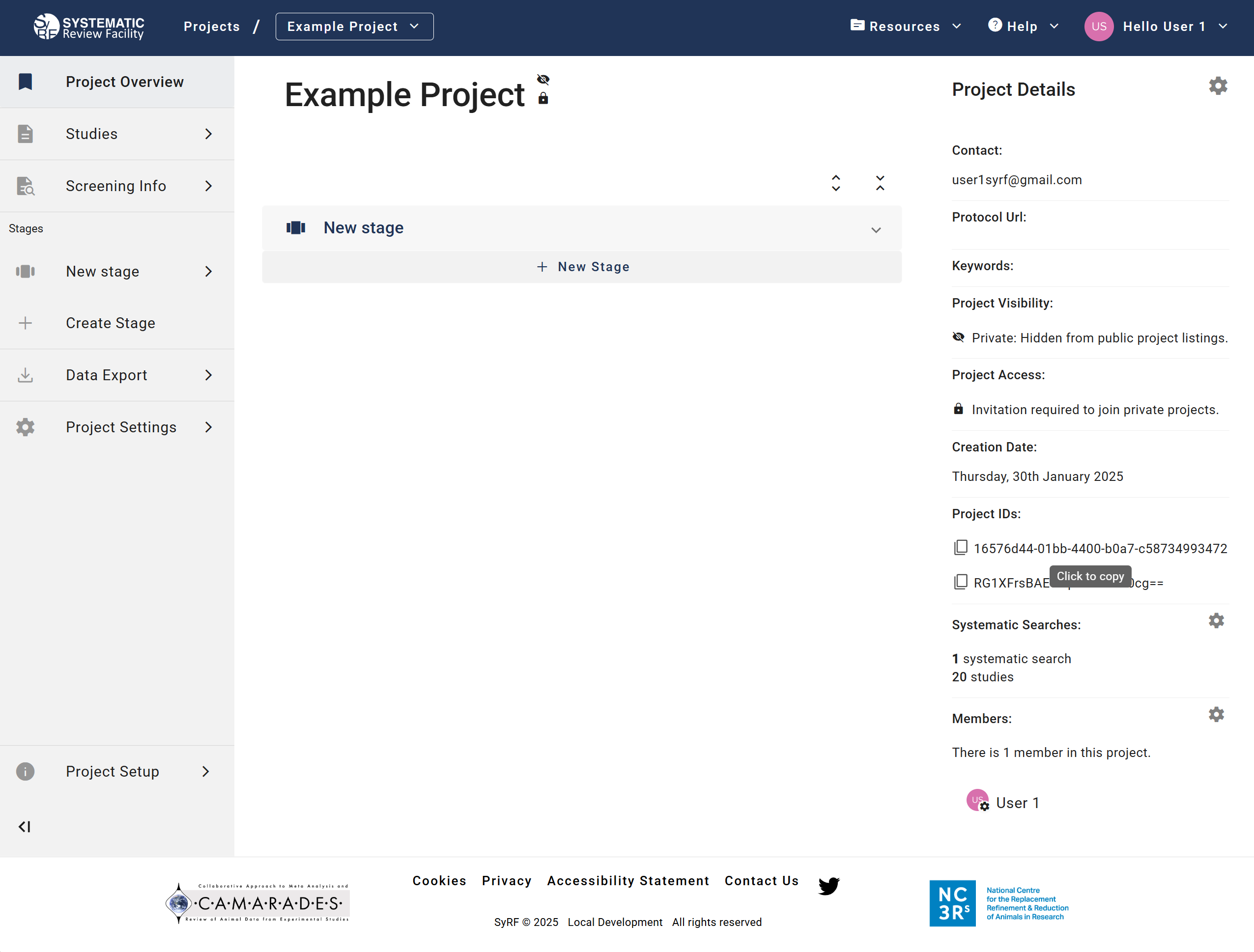
When in Project Overview you can expand the description of each stage to see what progress has been made in screening and annotation of that specific stage.
Under Project Details on the right hand side of this page you can see:
- Contact - the contact email of the project administrator
- Protocol URL - a link to where the systematic review protocol has been published
- Keywords - any keywords assigned to the project
- Project Visibility - either public or private
- Project Access- either administrator approval required for new members or approval not required for new members
- Creation Date - the date the project was made
- Project IDs - the unique project IDs (click to copy to clipboard)
- Systematic Searches - details of studies added to the project (can be edited by administrators by clicking on the cog icon next to this heading)
- Members - a list of members on the project (can be edited by administrators by clicking on the cog icon next to this heading)
Getting Started
You can screen or annotate studies by clicking on the stage name then ‘Review’ tab (on the left-hand side of the navigation pane). On the stage overview page you can expand the stage details and click the ‘Review’ button.
Note that if the Project Administrator has not uploaded any systematic searches, the ‘Review’ option will not be available.
Administrators Only
If you are a project administrator, you will be able to:
- Add new stages by clicking ‘+ New Stage’ on the project overview page.
- Edit most project details by clicking on the cog icon next to the Project Details heading.
- Edit Systematic searches and Members by clicking on the cog icon next to these individual headings.
Screening totals pilot
Some staging deployments show a screening totals panel on Overview. Application administrators can prepare it from Admin Console → Statistics Pilot, using their existing sign-in. This is separate from being an administrator of an individual project.
For this initial pilot, the deployment operator must configure statistics writes, screening calculations and serving on both application hosts. The pilot screen reports those prerequisites but cannot change them at runtime. Once configured, project maintenance and Project Overview application use have separate runtime actions. Fully runtime-managed prerequisites are follow-up work, not a capability of this initial screen.
The controls separate Calculate and maintain statistics from Use precomputed screening totals on Project Overview. Selecting a project does not calculate anything. Prepare the statistics service if needed, choose Build statistics, then Start maintenance and rebuild. Ongoing maintenance updates the prepared totals when supported source changes are saved.
Use Compare with source data to check readiness. A disabled or inconclusive result is not a pass. After the comparison passes, Use precomputed totals on Project Overview switches that page’s screening totals to precomputed reads when ready, with calculation from source data as fallback. This setting affects Project Overview throughout staging; it does not turn on annotation statistics or start maintenance.
Restore previous Project Overview settings reverses the application-use settings from the same browser tab while leaving maintenance running. It stops if someone has since changed the flags, preserving their changes. Keep the tab open until restoration is complete.
Stop maintenance and precomputed reads stops ongoing updates for this project and returns reads to calculation from source data. Follow the displayed waiting period and repeat the action to finish stopping. Stored statistics are retained.
The initial pilot screen offers only projects already configured for the deployment. It does not enroll other projects automatically, and it does not enable annotation statistics.
When Use precomputed totals on Project Overview is disabled, the pilot displays the reason beside the button. A passing comparison enables activation once the request finishes and Serving is on. Refresh status clears both the comparison and its displayed result; compare again after refreshing. A saved activation attempt must be restored before retrying. If restoration reports that flags changed later, review those changes in Feature Flags before proceeding.
When live screening updates are enabled for the pilot, totals refresh automatically for everyone viewing the project with access, including when another reviewer saves a change. Reconnecting refreshes the totals too. If an update is missed, the panel checks again within its regular 30-second refresh interval (background tabs may take longer). You do not need to reload the page.